 Shasha
- Android TV · Android
- Free Android app
- For TV and phone
- Arabic and English
- No ads, no sign-in
- No accounts, no tracking
- TV: Android 7.1 or newer, and Fire TV
- Phone: Android 8 or newer
What it does
No ads, and suggestions are up to you
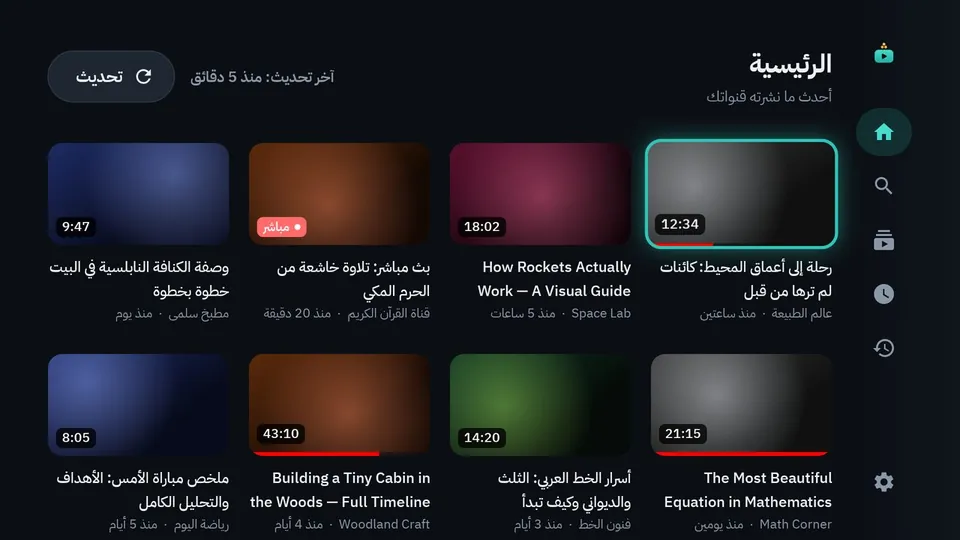
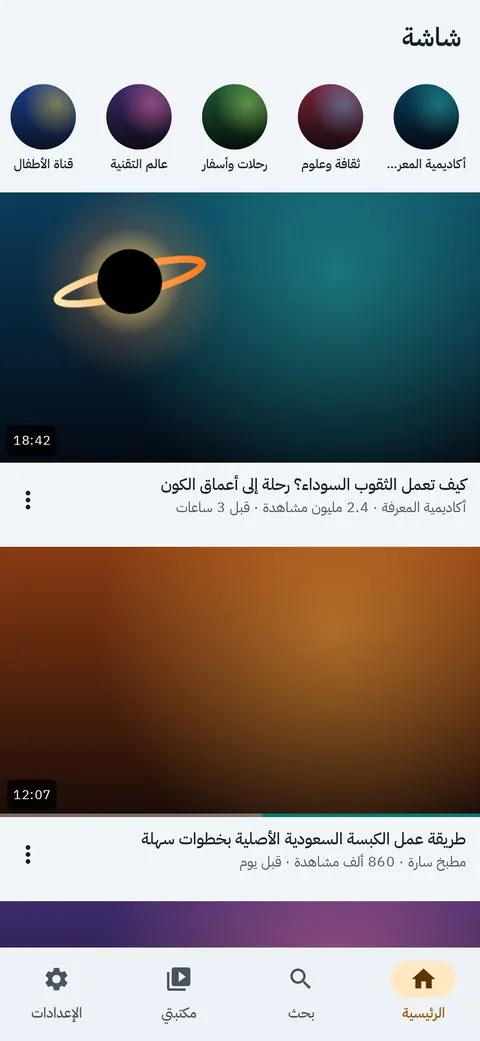
The home screen shows the latest videos from your channels. Suggested videos and Shorts appear or stay hidden as you decide, for each profile.
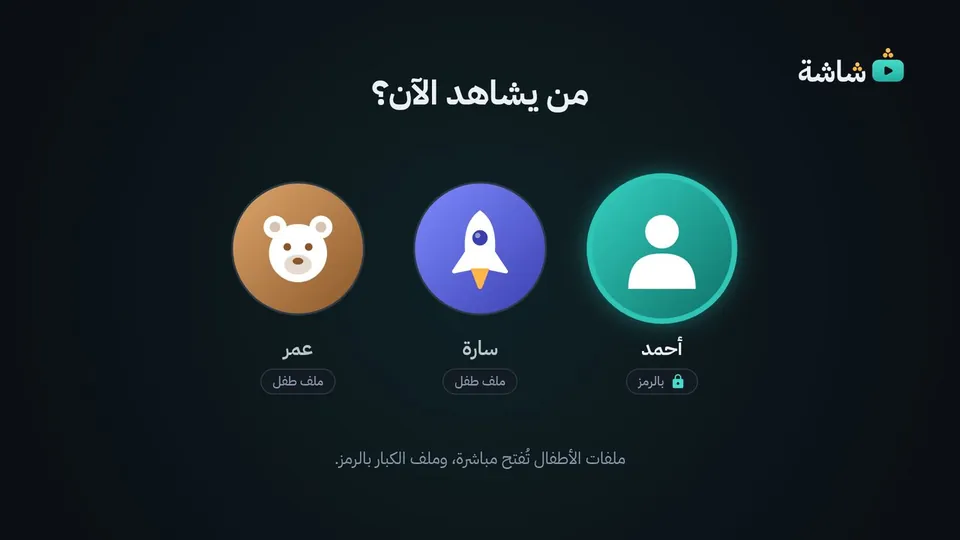
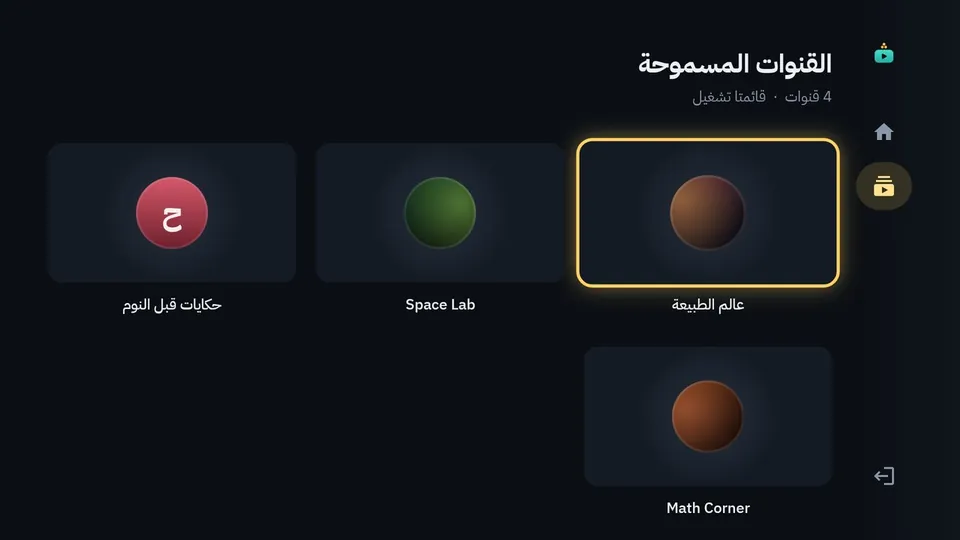
Profiles for children
A child sees only the channels you allow, and a built-in filter blocks inappropriate searches and results.
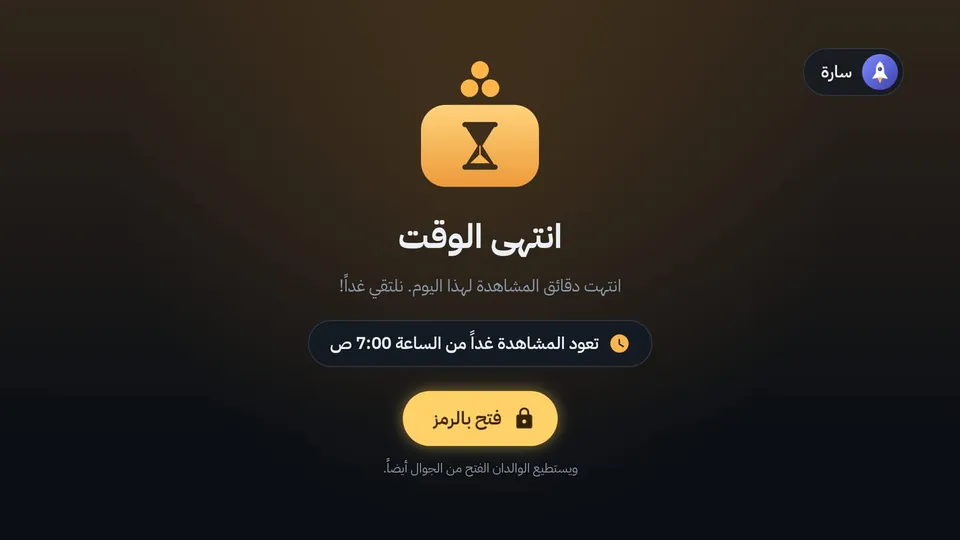
Limited time
Daily minutes and viewing hours for each child, with a warning before the time runs out.
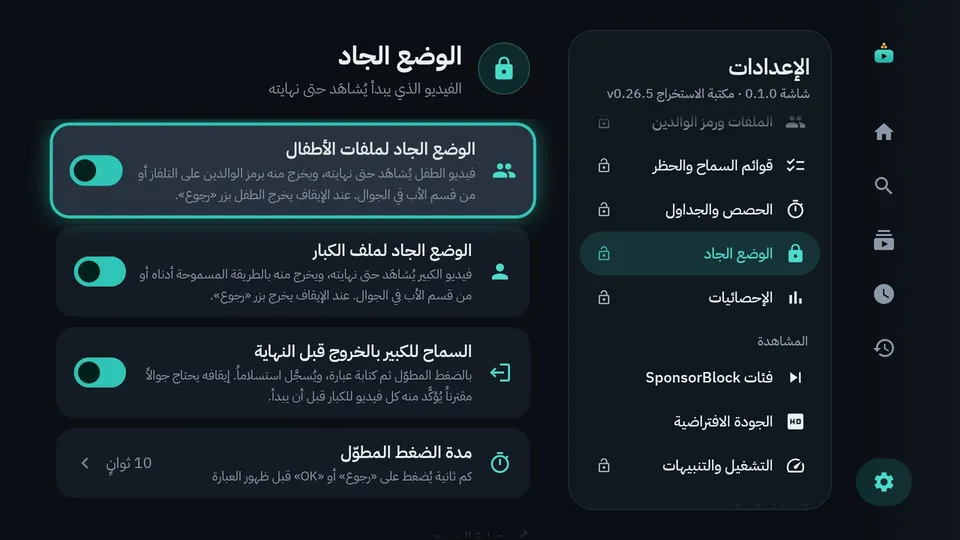
Serious mode
A video that starts is watched to the end, for children and for adults, and every change needs the parents' code.
Your phone as a remote, and as an app
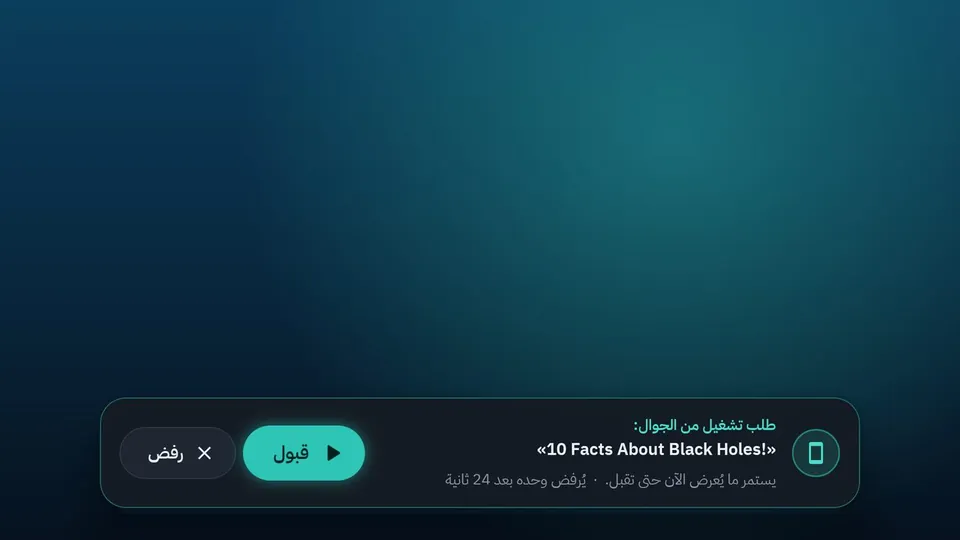
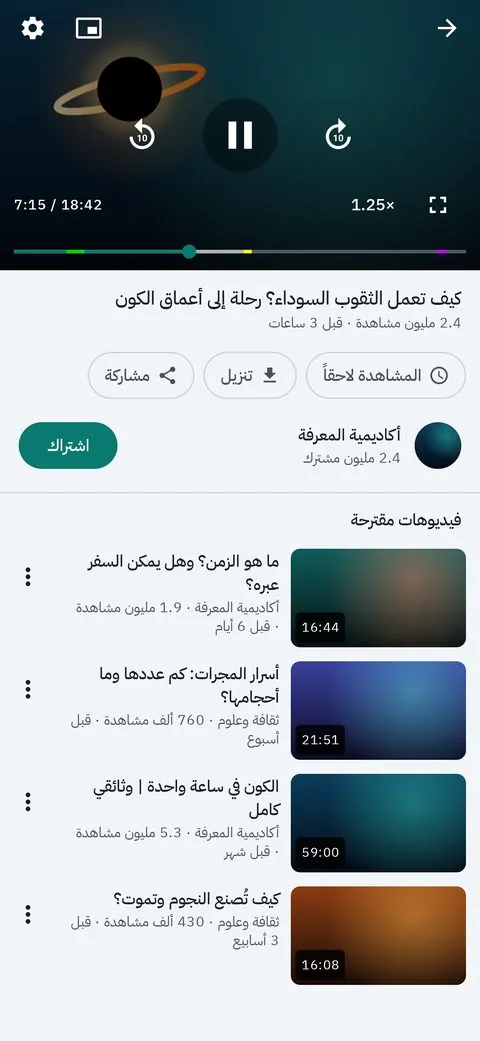
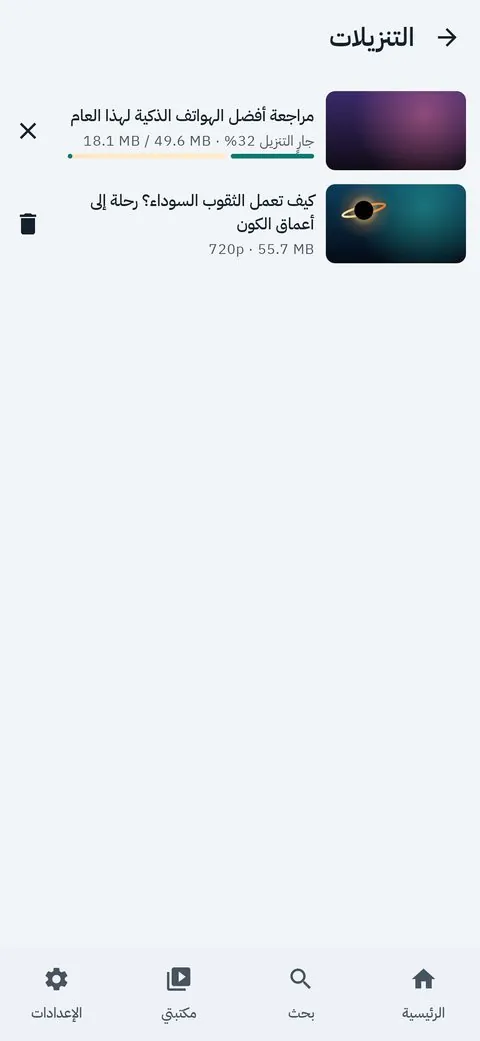
Send links and open up viewing time from your phone; whatever is sent waits for "Accept / Reject" on the screen. Or watch on the phone itself, with downloads and background playback.
Voice search, and skipping read-out sponsor spots
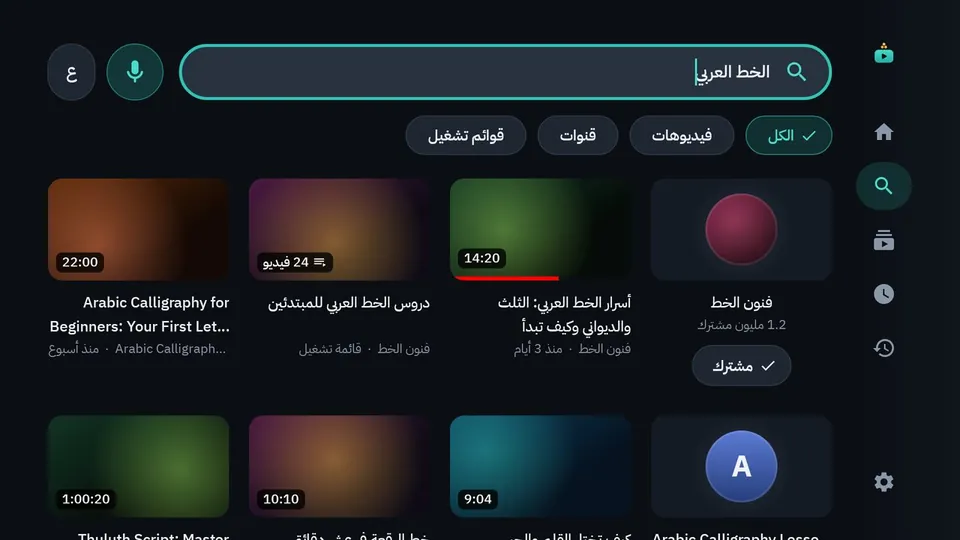
Search from the remote's microphone in Arabic or English. Sponsored segments inside a video are skipped automatically using SponsorBlock data.
Sleep timer and black screen
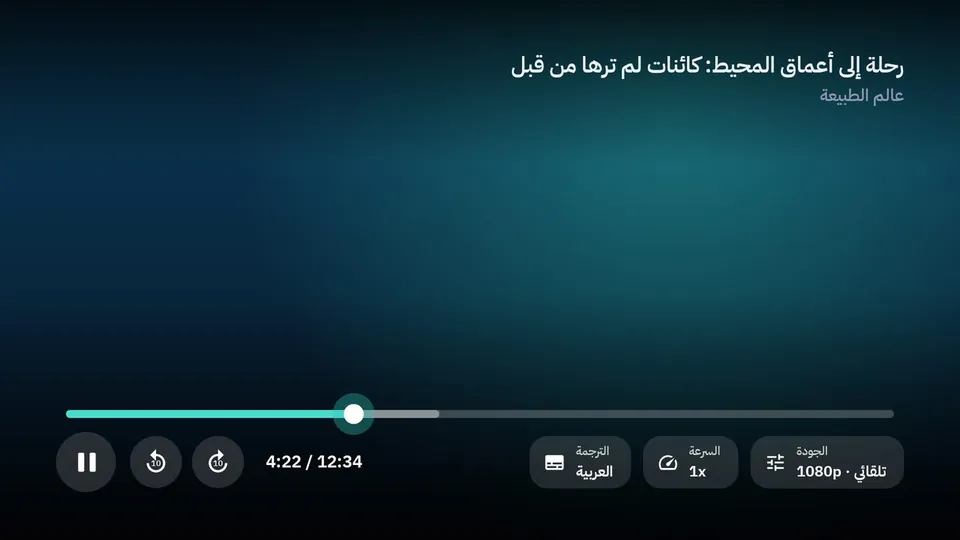
On the TV: play a video, choose a duration (20 minutes, for example), and turn off the picture while the sound continues. Playback stops by itself.
Screens
Download Shasha
Free. Once installed, each app updates itself with one press from inside it: Settings → Check for updates. Your data stays as it is.
The TV app
For Google TV and Android TV (Android 7.1 or newer) and Amazon Fire TV (Fire OS 6 or newer).
The phone app
Android 8 or newer. It works on its own without a TV: search, a full player, and downloading video or audio. Open this page on your phone, press the button, then follow the three steps. The phone app is for watching on the phone; controlling the TV is done from a page you open with the pairing code in Shasha's settings on the TV.
The setup kit: first install on a TV?
A TV will not open the file by itself: download the setup kit to your computer. It contains the installer for Windows, Mac and Linux, the TV app, the phone app and the guide.
Installing on the phone (3 steps)
Download the file
Use the "Download the phone app" button on this page, on the phone itself. (It is also in the "Phone" folder inside the setup kit.)
Open it
From the notification, the Files app or the browser. Android asks for your permission the first time: press "Settings", turn on the permission (Install unknown apps), then go back. This is normal for any app from outside the store, and happens only once.
Install it
Go back and press "Install", then "Open". It runs on Android 8 or newer.
Updating later
Settings → Check for updates → download and install. The system may ask you to confirm with one press.
Which TVs suit Shasha?
Works
Google TV and Android TV running Android 7.1 or newer, from any brand: Sony, TCL, Hisense, Philips and Xiaomi, plus Nvidia Shield, Chromecast with Google TV and Google TV Streamer, and projectors such as XGIMI and Nebula. Amazon Fire TV running Fire OS 6 or newer: Fire TV Stick, Fire TV Cube and Fire TV sets.
Does not work
Samsung (Tizen) and LG (webOS), Roku and Apple TV. Fire TV devices running Vega OS (2025 and 2026 devices such as Fire TV Stick 4K Select), and old ones running Fire OS 5. TVs with their own non-Android system: Hisense (VIDAA), Philips (Titan OS) and Panasonic.
Your TV is not one of these?
A small device that plugs into an HDMI port is enough: Google TV Streamer, Chromecast with Google TV, Xiaomi TV Stick, Fire TV Stick 4K or Fire TV Cube. Look for Fire OS on the box: some 2025 and 2026 devices run Vega OS and do not work.
Notes for Fire TV and older Android TV
Fire TV
Developer options: Settings → My Fire TV → Developer options (if you cannot find them: About, then press OK seven times on the device name). Turn on ADB debugging; the address is under About → Network. On Fire OS 6 the installer turns on Apps from Unknown Sources by itself so that one-press updates work. Later you will find Shasha under Your Apps → See all.
Older Android TV, Philips and Nvidia Shield
Developer options are under Settings → Device Preferences → About (on Philips: All settings → Android settings → Device Preferences → About), and on Nvidia Shield turn on Network debugging as well. Some newer Google TV models have Wireless debugging only: there the installer asks for a 6-digit code shown on the TV. The details are in the guide.
The Shasha guide
With pictures: supported screens, installation, everyday use, parents, the phone app, updating and troubleshooting. The guide and the explainer video are also inside the app: Settings → Guide and video.
Shasha guide (Arabic)
PDF · 3.1 MB
Shasha Guide (English)
PDF · 3.0 MB
Getting started
- 01
Download the setup kit (on the computer)
You need the TV and its remote, and a computer (Windows, Mac or Linux), both on the same home network; it takes about a quarter of an hour. Download the kit with the "Setup kit" button, then unzip it. Windows: right-click → Extract All. Mac: double-click. Keep the files together in the folder.
- 02
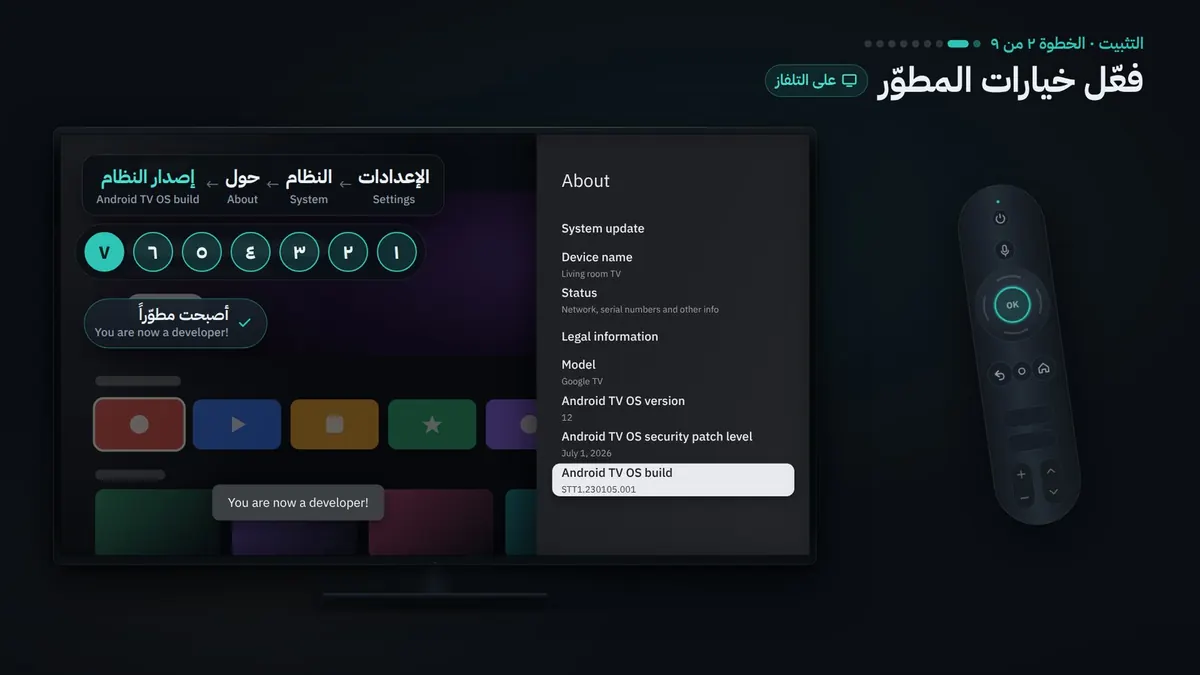
Turn on developer options (on the TV)
Settings → System → About, then press OK seven times on Android TV OS build until "You are now a developer!" appears.
- 03
Allow installing from the computer (on the TV)
Settings → System → Developer options → turn on USB debugging, and Network debugging if you find it.
- 04
Find the TV's address (on the TV)
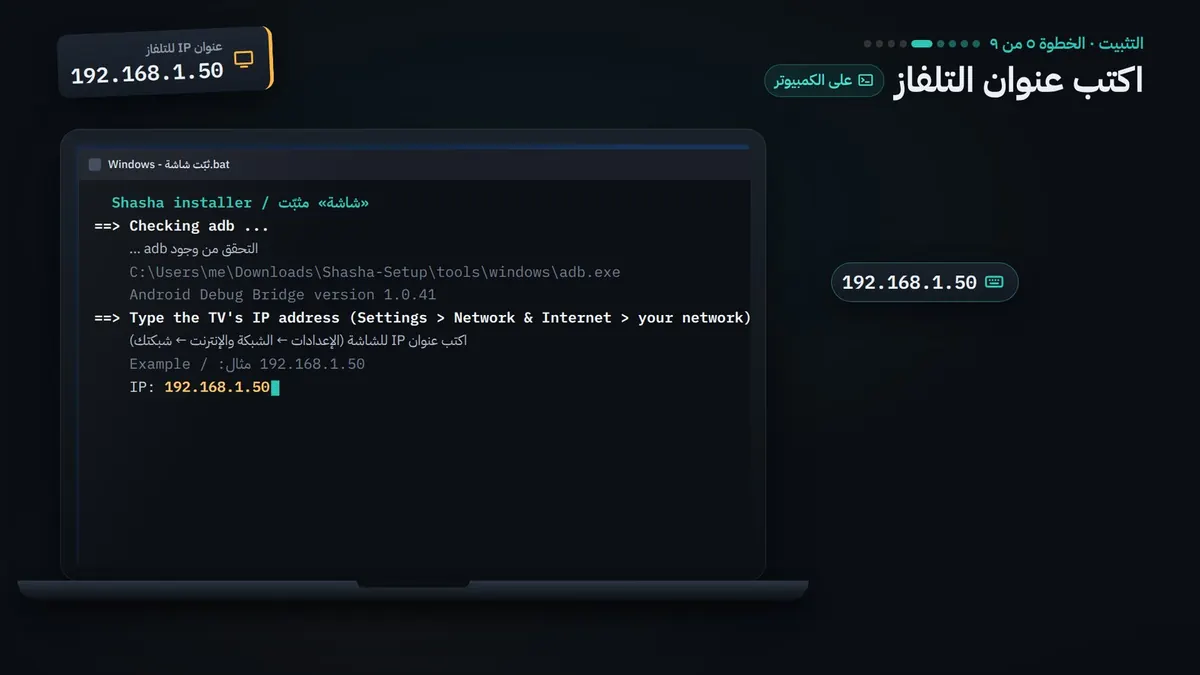
Settings → Network & Internet → your network's name → IP address (on a cable: Ethernet). Four numbers separated by dots, such as 192.168.1.50.
- 05
Run the installer (on the computer)
Windows: double-click "Windows - ثبّت شاشة" (if a blue window appears, that is normal: More info → Run anyway). Mac: double-click "Mac - ثبّت شاشة" (if it does not open: System Settings → Privacy & Security → Open Anyway). Linux: run install-linux.sh. Then type the TV's address.
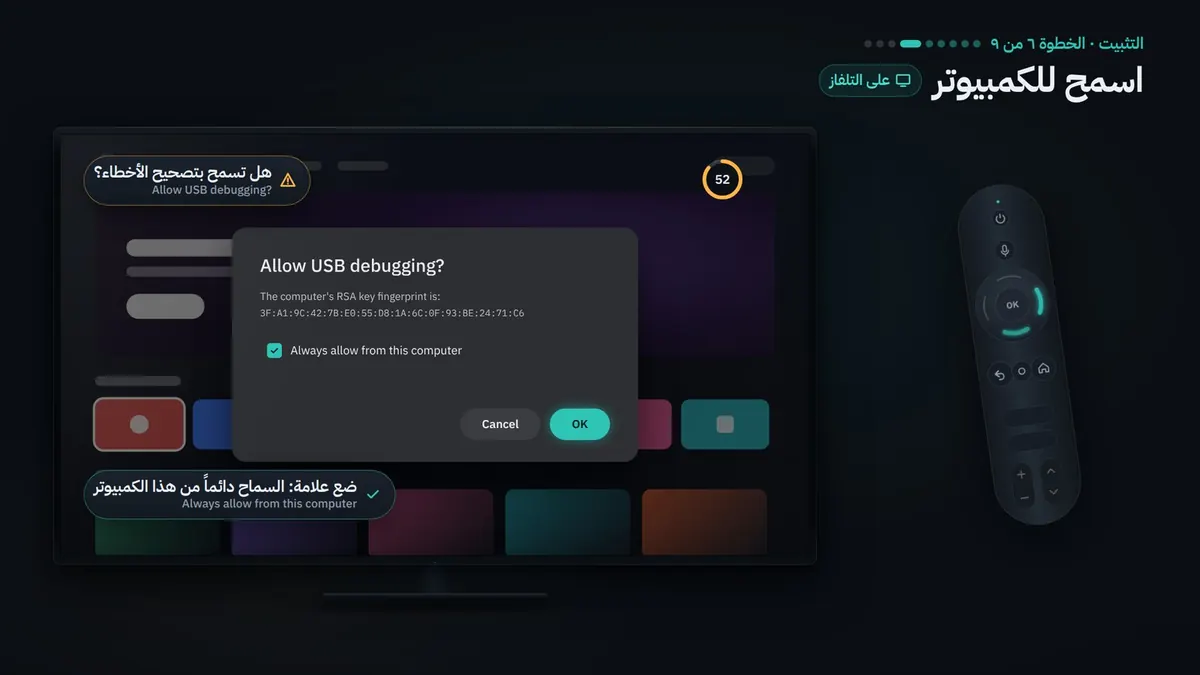
- 06
Allow the computer (on the TV)
"Allow USB debugging?" appears: tick "Always allow from this computer", then OK.
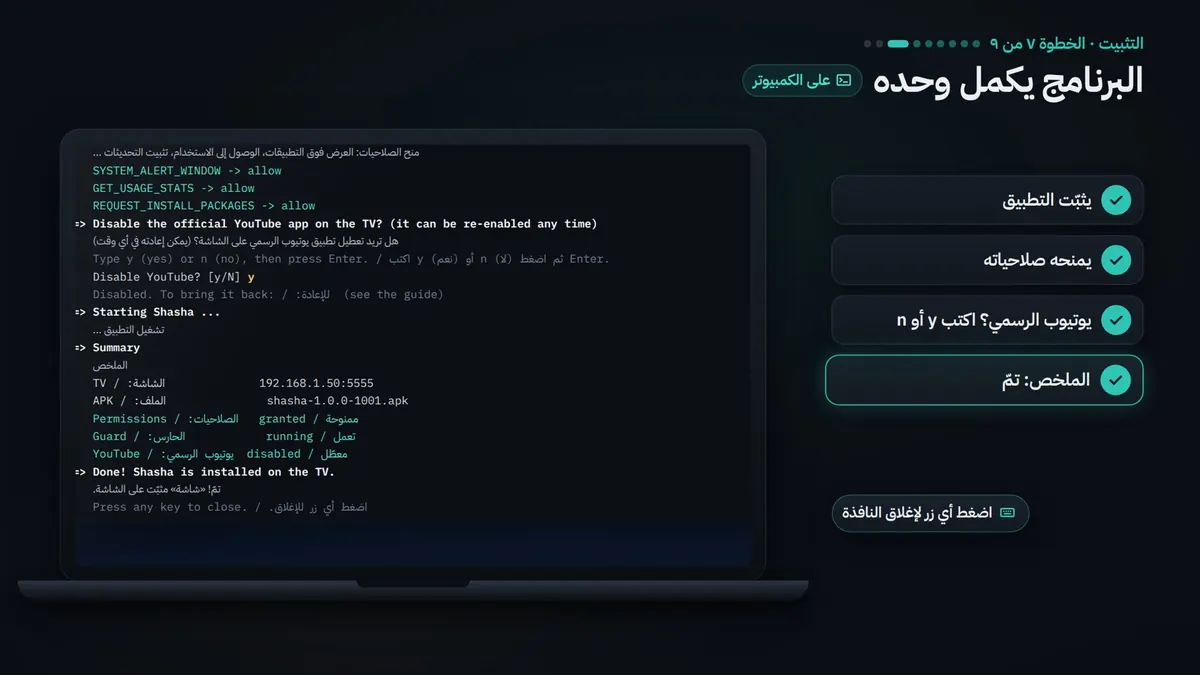
- 07
Wait, the installer finishes by itself (on the computer)
It prints the TV's name and model, installs Shasha and grants its permissions, asks whether to turn off the official YouTube app (y or n), then prints "Done!".
- 08
First run (on the TV)
Shasha asks for the parents' code, then your profile, then your child's profile.
- 09
Link your phone, optional (on the phone)
In Shasha: Settings → Local server → Pairing code, then scan it with the phone's camera.
Questions
Is the app free?
Yes, with no ads, no subscriptions and no sign-in.
My TV is a Samsung or an LG
Their system is not Android. You do not need to replace the TV: plug a small device running Google TV or Fire OS into an HDMI port, select that port with the Source button, and install Shasha on it as if it were the TV.
How do I update?
From inside the app: Settings → Check for updates. One press downloads the latest version and installs it; the app closes for a moment and opens again. Or run the computer installer again with the newer file. Your data stays as it is.
Where is our data kept?
Everything is on the TV itself: profiles, allowed channels, history and settings. No accounts and no tracking.
Can I remove it?
Yes: on the TV, Settings → Apps → Shasha → Uninstall (this erases all its data).
Installation is done once only. After that the app updates from inside itself.
Last published: 2026-11-07. Each new version installs over the previous one, and your data and settings stay as they are.
Made by Ahmad Nayfeh. Sponsored segments are skipped using SponsorBlock data (sponsor.ajay.app).
More
All apps
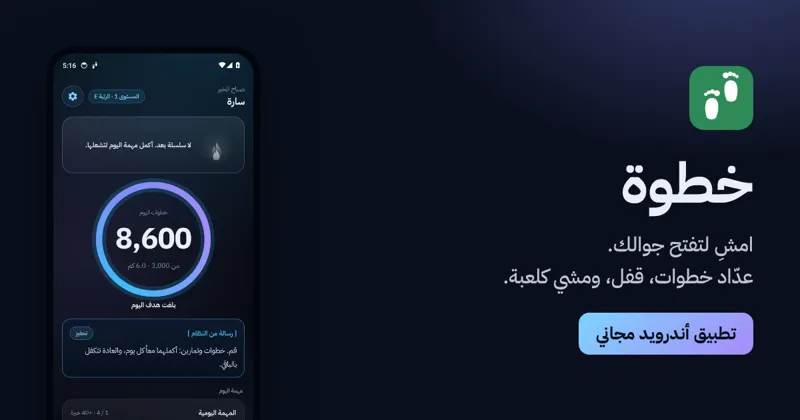
KhatwaAndroid app
Counts your steps, locks your phone until you walk, and turns walking into a game.

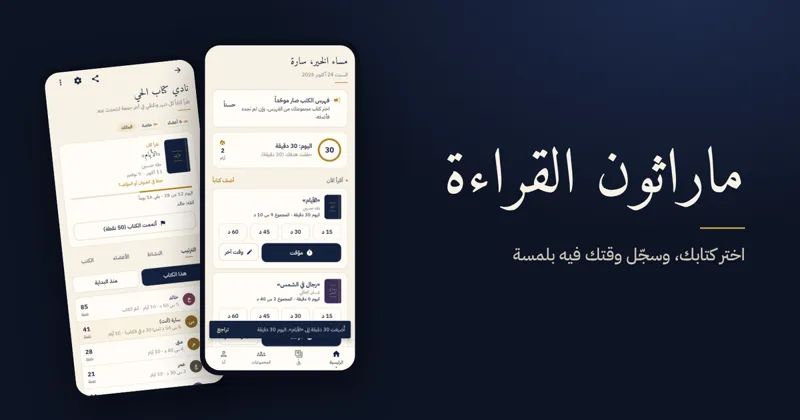
Reading MarathonAndroid app
One shared book per challenge, a daily log, points and badges for reading groups.
VoxaWeb app · Android
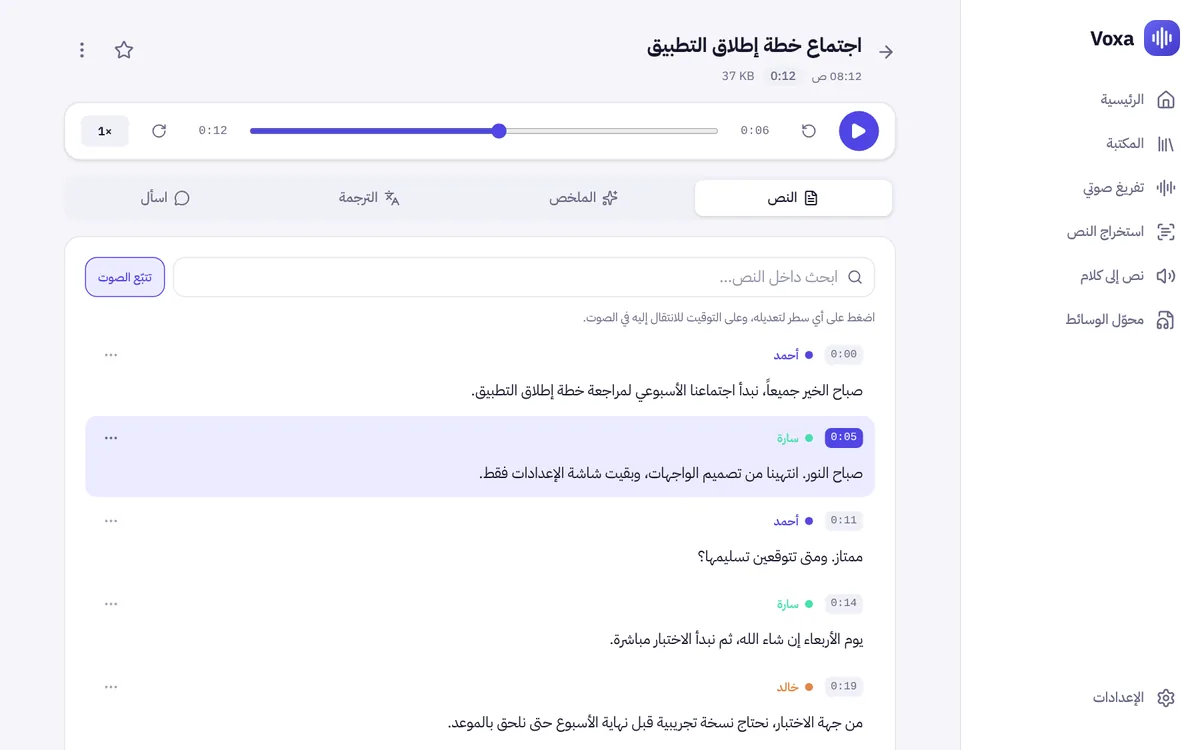
Turns voice notes, meetings, lectures and YouTube videos into text that shows who said what, with summary, translation and export.